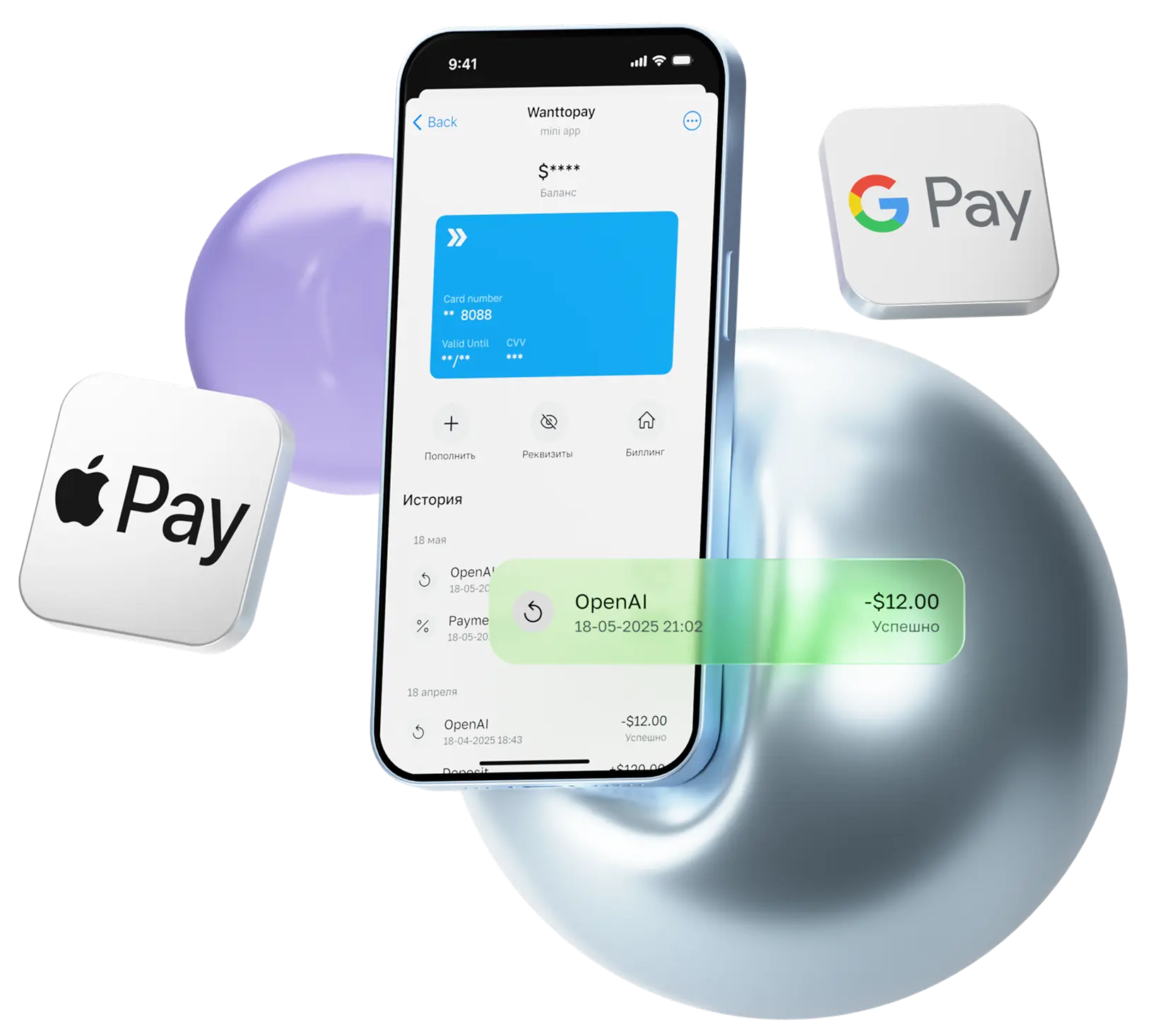

Thanks to proven payment methods, users can easily access advanced neural networks such as Suno AI.
Suno AI is a next-generation neural network for creating, processing and editing audio. It offers unique opportunities for bloggers, streamers, musicians, podcasters, marketers and sound designers to generate music, synthesize voices, and work with audio in a professional manner. In the service, you will receive:
- High sound quality;
- Simple interface and quick results;
- A wide range of music genres;
- In-platform editing tools;
- Commercial use (with a paid subscription).
You can also add music to videos, create jingles for ads, quickly test ideas, and make music for games.
The free version of Suno AI retains the basic generation capability, but there are speed and volume limits. A paid subscription is usually required to work fully, especially in commercial tasks.
In this article, you'll learn how to pay for a Suno subscription in 2026. We will discuss in detail the registration process, choosing a tariff plan and the payment itself. Paying for a subscription to the Suno AI neural network will be easy and affordable for you if you follow our step-by-step guide.
What do you need to pay for a Suno AI subscription
The first steps are to create an account and link a bank card suitable for payment.
Sign up with a Google account. Do not use alternative methods, as this may cause payment problems due to the transfer of your location data

Wanttopay cards with Smart or Pro tariffs are suitable for Suno AI payment - these are cards with 0.3% commission and the ability to top up your balance in USDT
%201%20(1).webp)
It is the lack of a foreign card that often becomes the main obstacle for users.
Why do you need a foreign card?
When trying to pay, users of the service often face the fact that bank cards are not accepted, and the payment is declined without explanation. Issuing a foreign bank card requires time, documents and personal presence. Cards for non-residents come with fees and restrictions.
Therefore, the simplest solution is to use a virtual foreign card that works like a regular bank card and is easily accepted when paying at Suno AI.
The simplest solution is to issue a virtual card
Foreign virtual cards are issued specifically to pay for international services. Registration takes a few minutes, after which the map is immediately ready for use. With the card you get full freedom: pay ChatGPT, Midjourney, Netflix, Spotify and any other foreign services directly, without intermediaries and overpayments.
How do I get a Wanttopay virtual card?
Wanttopay is a service that allows you to issue virtual cards to pay for foreign subscriptions, services and online purchases. It is especially relevant for users who need to have access to foreign payment instruments.
.png.webp)
- Go to Wanttopay's official Telegram chatbot — @WanttopayBot
- Launch the chatbot and click on the “Open mini-app” button
- Create an account, enter your name and enter your email
- Click on the “Issue a card” button to select the appropriate plan
- Pay for the card issue. Available payment methods: fiat and cryptocurrency
- The card will appear in the “My Cards” section and will be immediately ready for purchase
To pay for ChatGPT, choose Prepaid, Easy, Pro plans — they are great for paying for subscriptions and digital services. The card currency is the US dollar, but you can also pay for purchases in other foreign currencies with automatic conversion.
You can find more details about map features in the section Rates.
How to pay for Suno AI in 2 minutes
Register and set up an account
To create a new profile on Suno AI, follow these steps:
- Go to the official website suno.
- In the lower left corner, click “Sign In” to proceed to registration.
- Choose to sign up with a Google account. Don't use alternative registration methods because this may cause payment problems.
.webp)
Subscription payment
It is important
Suno has strict location requirements, and payment may be declined if your IP address is determined outside the United States. Read the return conditions before buying a card at chatbot.
After completing your registration, you will need to click on the “Subscribe” button located on the main page in the lower left corner.
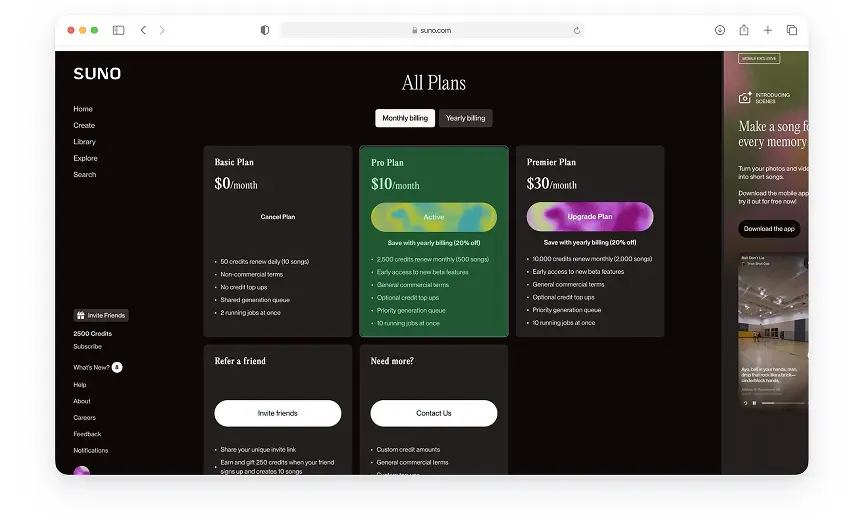
Choose the plan you're interested in (in our example, we'll pay Pro Plan for $10 per month), after choosing a plan, you'll be redirected to the payment form.
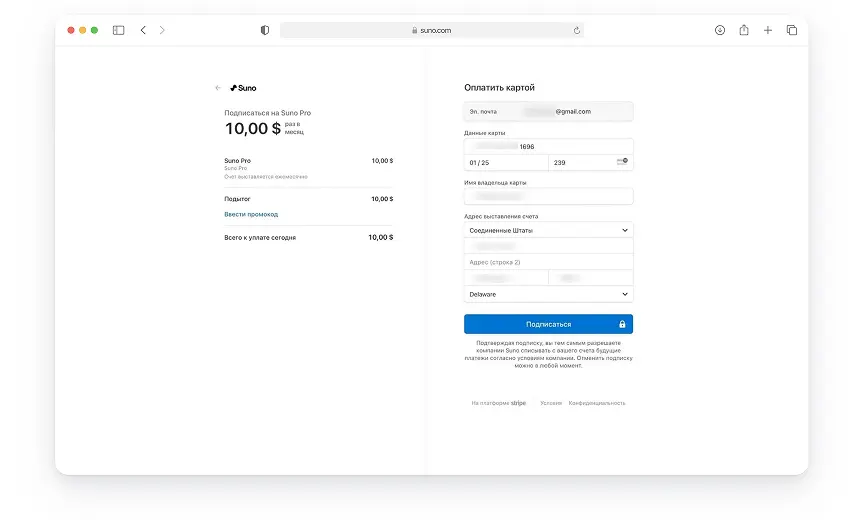
Fill out the payment form using your virtual card details and billing address. After filling in all the fields, click the “Subscribe” button and wait for the procedure to complete.
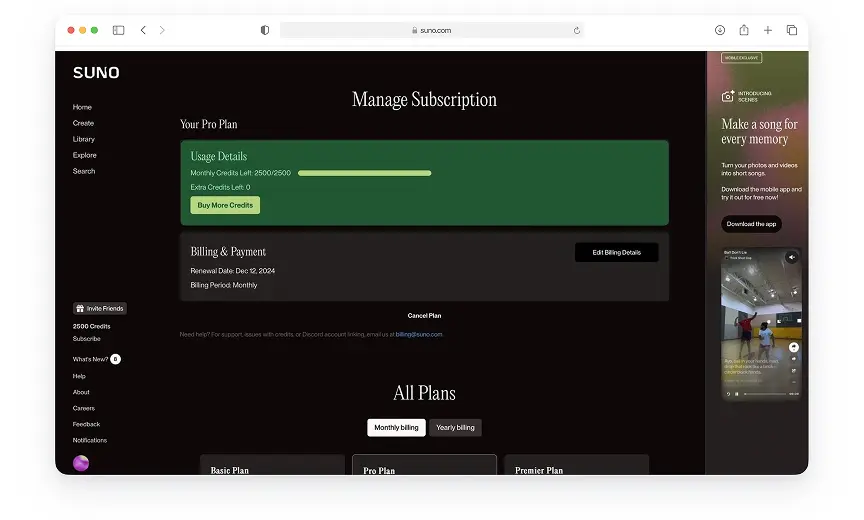
If your payment is successful, you will be automatically redirected to a confirmation page for your new plan.
This is where you'll be able to verify that your subscription is activated and you've got access to Suno's advanced features.
Successful purchase transactions will also appear in the widget @WanttopayBot. You can find out all the details about the app via this link.
Conclusion
This method has already been tested by many of our customers and works stably when paying for a subscription to Suno AI. And if you have any questions, support will help you at any stage.